Workspace Search
Begin by choosing the top “Search Workspace” field:

The following menu then appears:
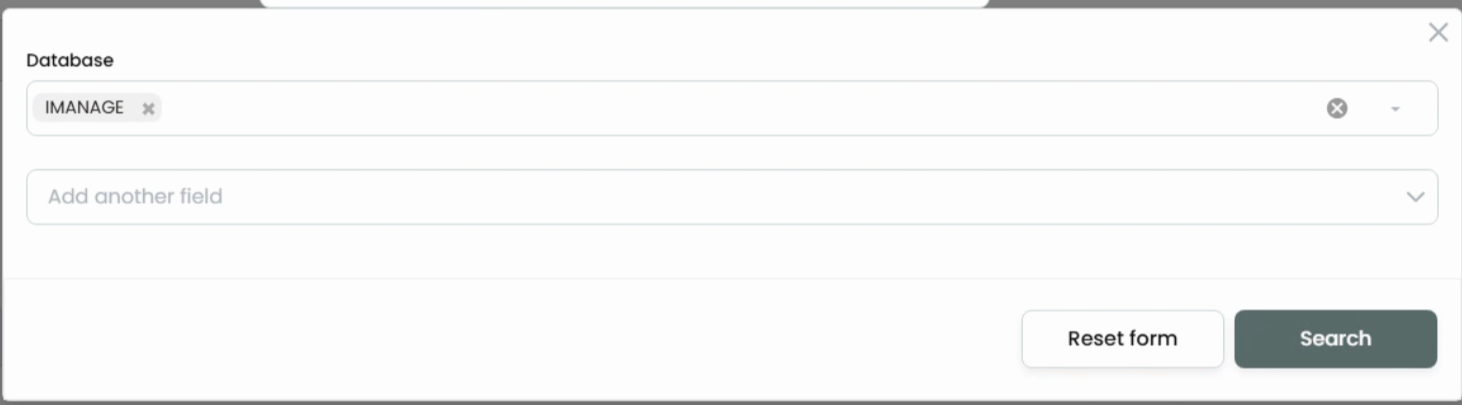
- Select the Database (aka, Library). You must choose a minimum of one library.
After choosing a library, choose “Add another field” drop down menu to see all options. The field below “Owner” will be chosen by your administrator as a global option. In the example below, we chose Practice Area (CUSTOM29) and CUSTOM30.
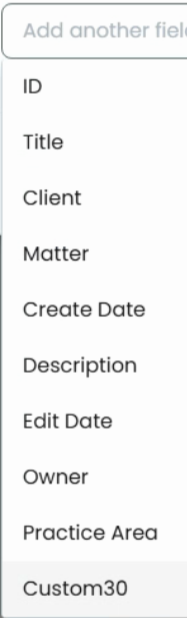
Select a lookup value, such as Client (CUSTOM1) to see all lookup data:
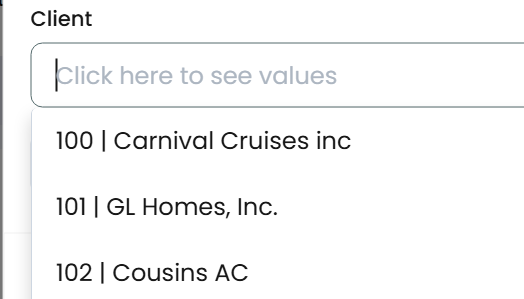
Alternatively, begin typing ahead to locate the lookup value.
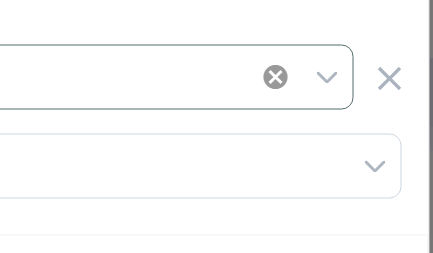
Add additional fields to narrow your search. Pressing the “X” will remove each search criteria:
When a date field is selected, you will have the ability to filter by:
- On
- Before
- After
- Between
Note: The values listed in any CUSTOM field will be filtered for the libraries chosen. The system will only show the values common to each of the selected libraries.
Search results will be paginated to ensure only a certain number of Workspaces will be presented from a given search result:

The default is set to 250, but can be increased up to 9,999.
- Double-clicking on a Workspace will drill down into sub-Folders, showing all Folders under the root of the Workspace. The menus are all the same regardless of how you access Folders or Documents.
Single Selection
On the list view of searched Workspaces, you will find the following Single Selection menu:
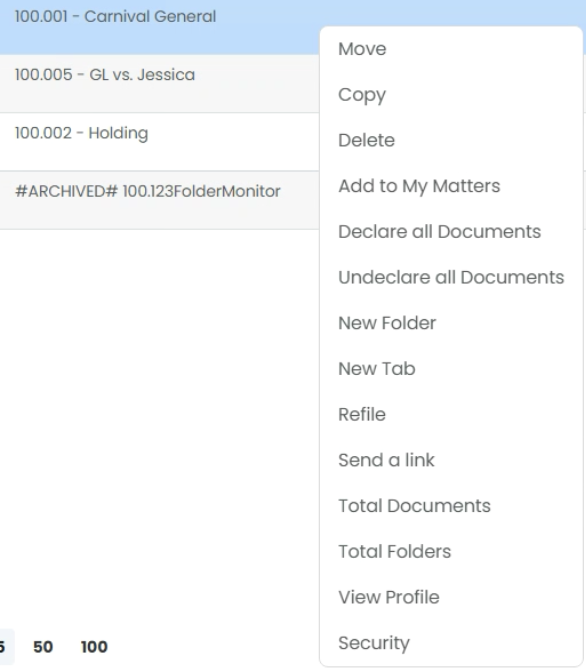
Copy – Copy the selected Workspace from one library to another library. All folders and documents will be migrated. A preflight check will be made to ensure all lookup data resides in the destination and all users/groups are enabled as well. Anything that does not exist will cause the process to discontinue.
The option to move the timeline will appear, when copying to another library.
Move – Move the selected Workspace from one library to another library. All folders and documents will be migrated. A preflight check will be made to ensure all lookup data resides in the destination and all users/groups are enabled as well. Anything that does not exist will cause the process to discontinue.
The option to move the timeline will appear, when moving to another library.
Delete – The Workspace, along with all Folders, and Documents will be deleted. Documents will be hard deleted by default, though this is an option that your administrator will control globally:
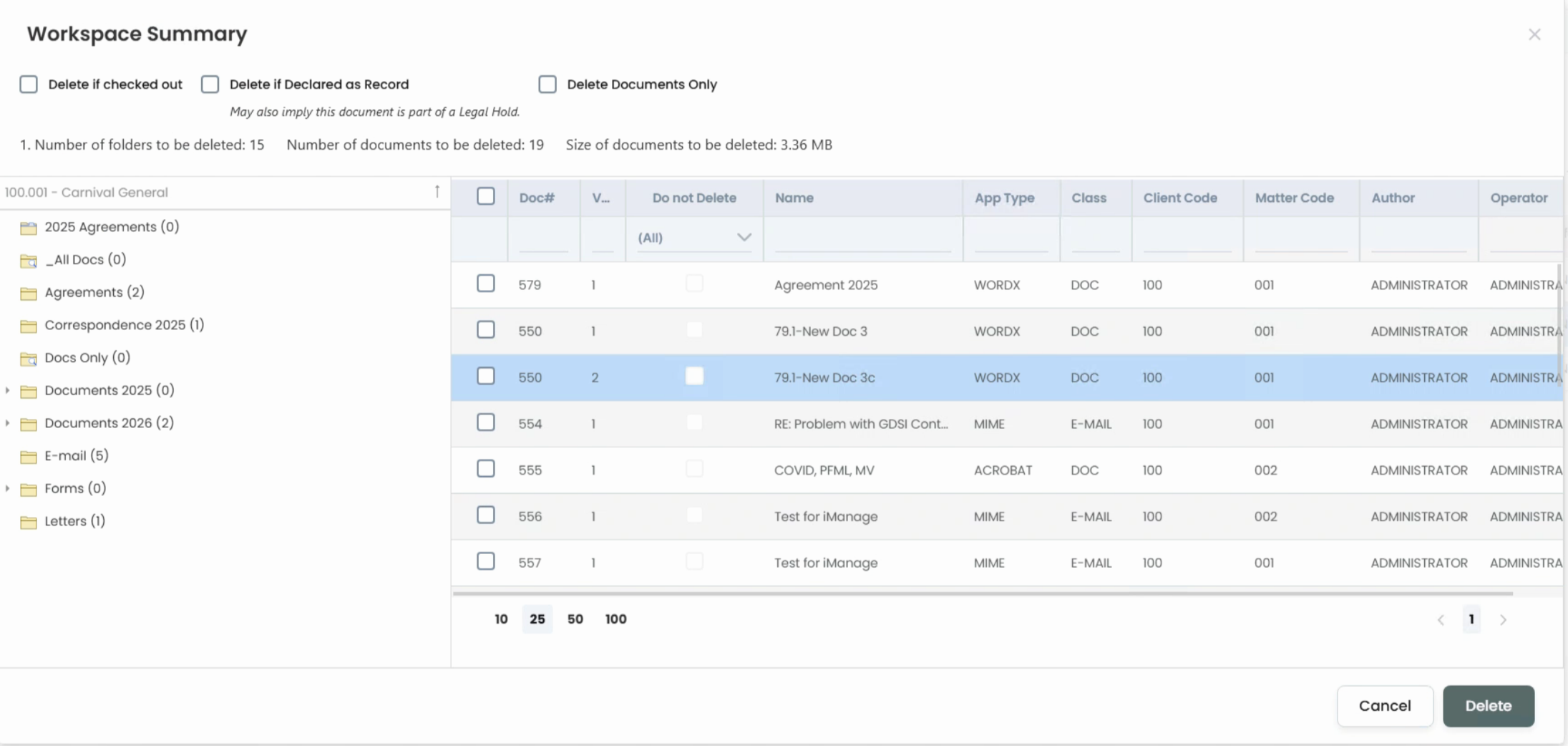
After selecting to delete, you can choose which documents to not delete by choosing “Do Not Delete” on the right-click of each document and Folder. When you select the grey “Delete” button, all folders and documents allowed to delete, will be deleted.
You can also choose to Preview each document before making a selection, by choosing the “Preview” option on the right-click. This will take you to the iManage Previewer to see the document first.
There are three checkboxes as well, “Delete If Checked Out” – which will delete documents even if they are checked out, “Delete if Declared as Record” – which will delete even if the documents are declared, and “Delete Documents Only” – which will delete the documents but leave behind the Folders and Workspaces.
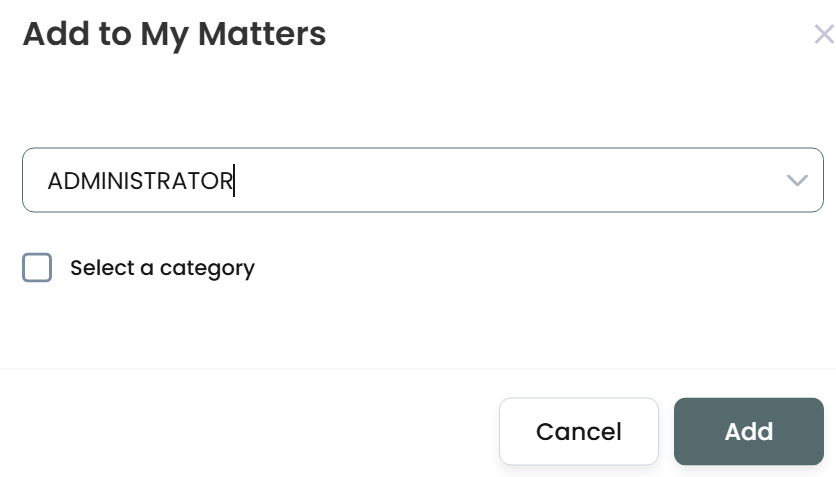
Add to My Matters – Adds the selected Workspace to a User’s My Matters:
Declare all Documents – All documents within the Workspace will be declared as record.
Undeclare all Documents – All documents within the Workspace will be undeclared as record.
New Folder – A new Folder will be created at the root of the Workspace. Alternatively, an entire folder tree can be created by selecting from a template.
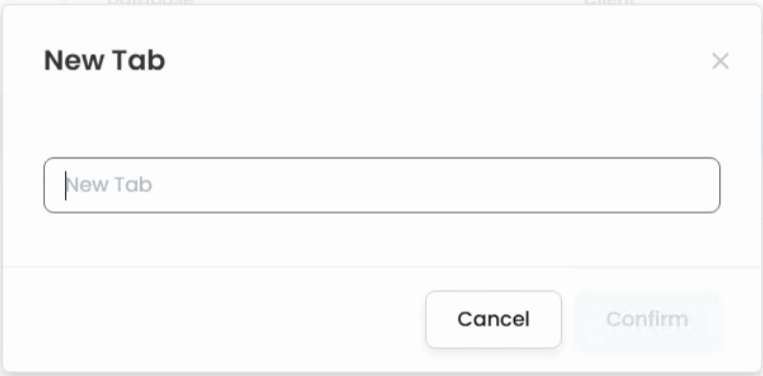
New Tab – A new Tab will be created at the root of the Workspace. The security defined at the Workspace will be inherited to the Tab.
Refile – The Refile system will start, allowing you to push security down to each folder and document.
Send a link – A shortcut of the Workspace will be available to copy to the clipboard:
Total Documents – Presents the total number of Documents found within the selected Workspace.
Total Folders – Presents the total number of Folders found within the selected Workspace.
View Profile – Opens the Profile tab of the Workspace. Profile fields will appear regardless if they are editable or read only.
Security – Takes you to the Security tab directly.
Multiple Selection
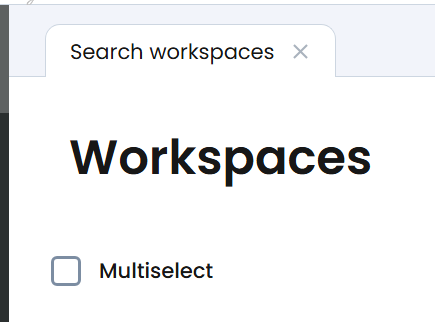
Choose the “Multiselect” checkbox to enable the checkboxes next to each Workspace.
The following menu is now revealed upon a right-click:
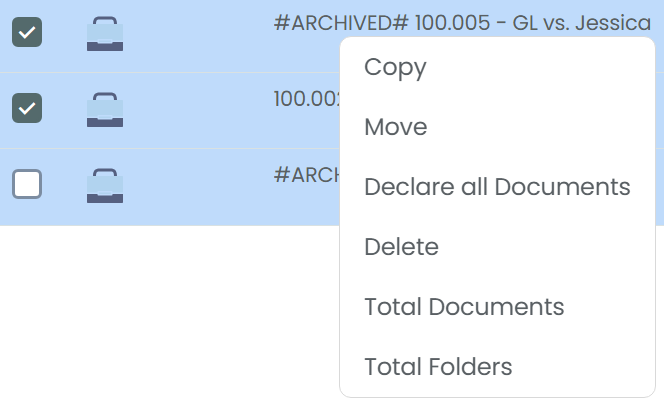
Copy – Copy the selected Workspaces from one library to another library. All Folders and documents will be migrated. A preflight check will be made to ensure all lookup data resides in the destination and all users/groups are enabled as well. Anything that does not exist will cause the process to discontinue.
Move – Move the selected Workspaces from one library to another library. All Folders and documents will be migrated. A preflight check will be made to ensure all lookup data resides in the destination and all users/groups are enabled as well. Anything that does not exist will cause the process to discontinue.
Declare all Documents – All documents within the selected Workspaces will be declared as record.
Delete – The selected Workspaces, along with all Folders, and Documents will be deleted. Documents will be hard deleted by default, though this is an option that your administrator will control globally.
Note: When multi-selecting Workspaces to delete, you cannot choose what documents and Folders to delete, it’s all or none.
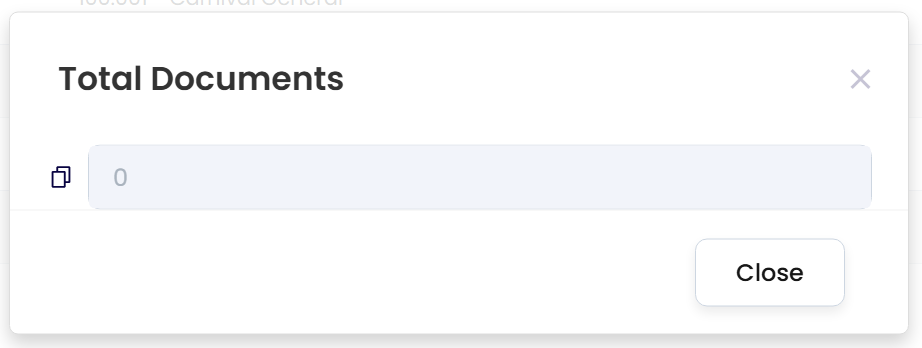
Total Documents – Presents the total number of Documents found within the selected Workspaces.
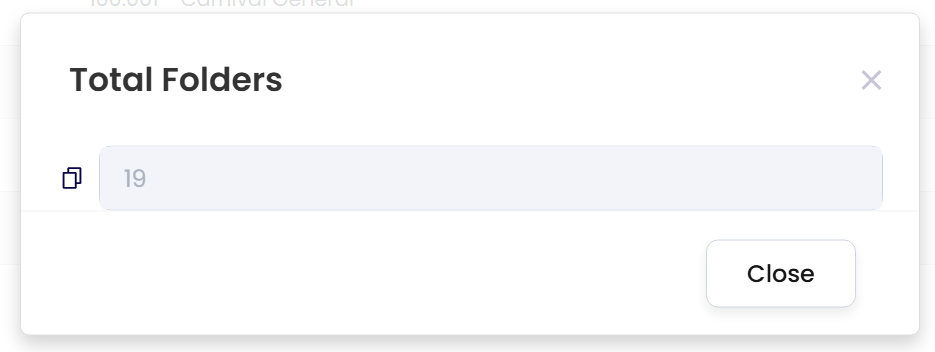
Total Folders – Presents the total number of Folders found within the selected Workspaces.
Workspace Icons
The icons listed in the first column of the list view, next to each Workspace, shows the Workspace:
Workspace
Deletes
Workspaces that are in the process of being deleted will be noted with a checkbox for Marked for Delete:
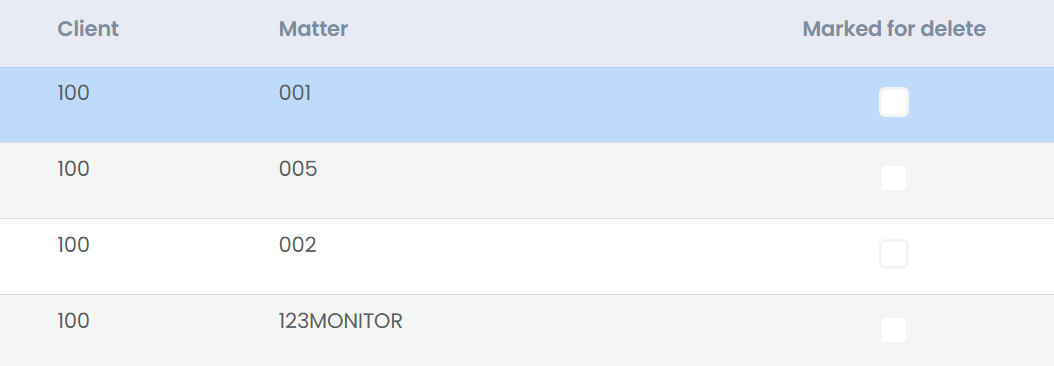
When checked by the Task, another user cannot also run the Delete. There is no way to undelete or stop a delete.
In addition to deleting by single and multiple selection, you can also import a CSV file with the intention of deleting all records within the CSV. You can find this option on the Workspace List View’s button bar:

When pressed, this dialog box will appear:
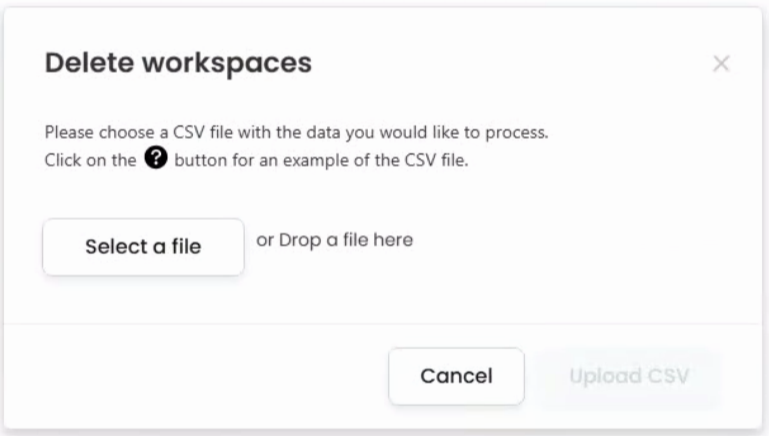
Press the “?” to see an example CSV file.
Select your CSV and choose to upload. Now a selection list will appear for you to choose to delete.