Document Search
Step-by-Step Document Search Guide
Step 1: Begin your search by choosing the top “Search Document” field:

Step 2: The following menu then appears:
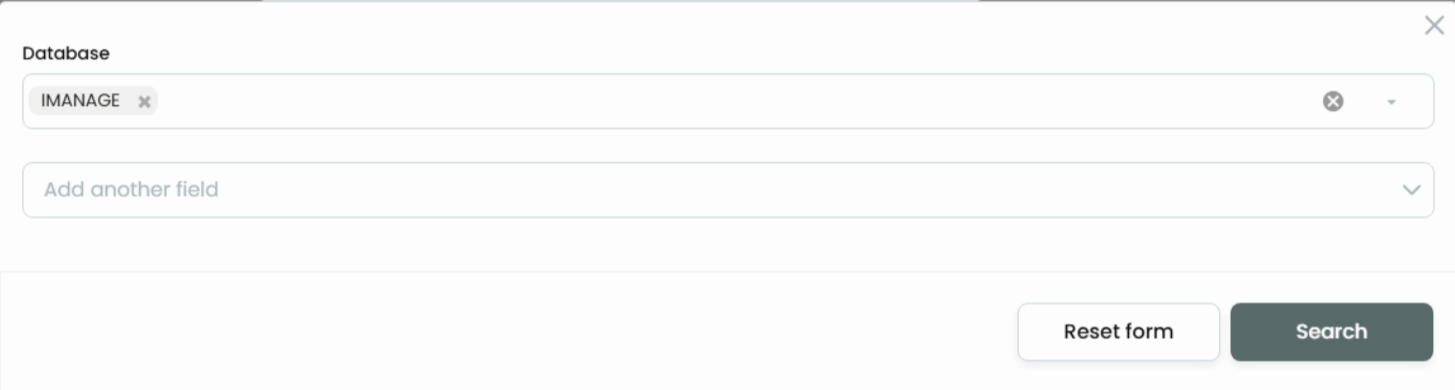
Step 3: Document searches begin by selecting the Database (aka, Library), and then choosing “Add another field” dropdown menu to see all options.
Note: Due to limitations with On-premises and iManage.Work versions of iManage, please keep “Add wildcards” unchecked. This checkbox should only be used for CloudiManage.
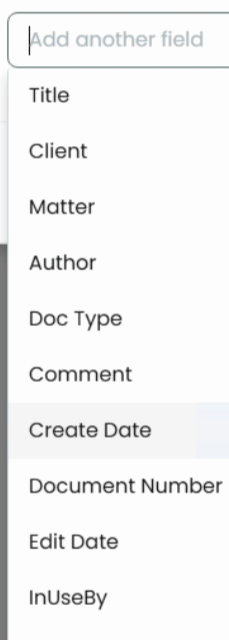
Step 4: Selecting a lookup value, such as Client (CUSTOM1) will enable you to see all lookup data:
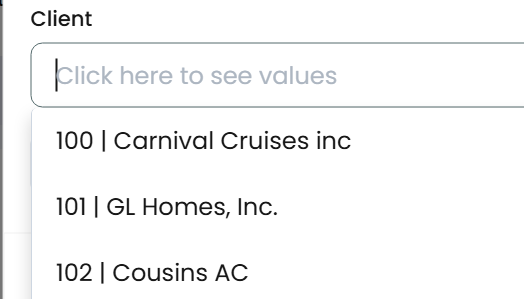
Step 5: Alternatively, you can begin typing ahead to locate the lookup value. As an option, you can add additional fields to narrow your search.
Step 6: Pressing the “X” will remove each search criteria:
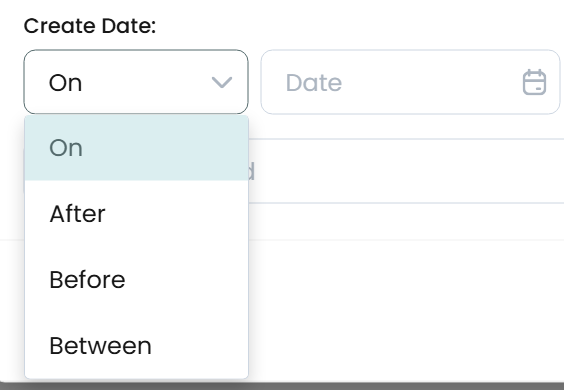
Step 7: When a date field is selected, you will have the ability to filter by:
On, Before, After, Between
Step 8: Search results will be paginated to ensure only a certain number of Documents will be presented from a given search result:

The default is set to 250, but can be increased to 5,000.
Notes: All emails will be listed, regardless of conversations being used in iManage.
Single Selection
On a Single Selection, the following menu is revealed:
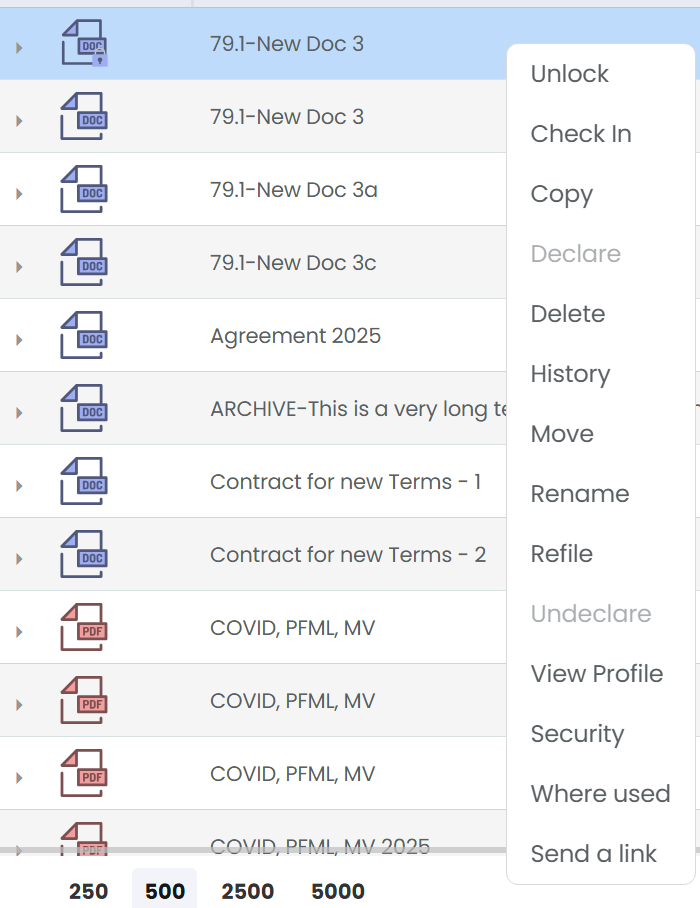
Unlock – An unlock will occur for the selected document that is checked out. We are not able to remote-check in since we will not have access to the checked out document. Therefore, we can only unlock.
Check In – An alternative to Unlock. If you have the actual checked out document, then select this option to locate the document to check in.
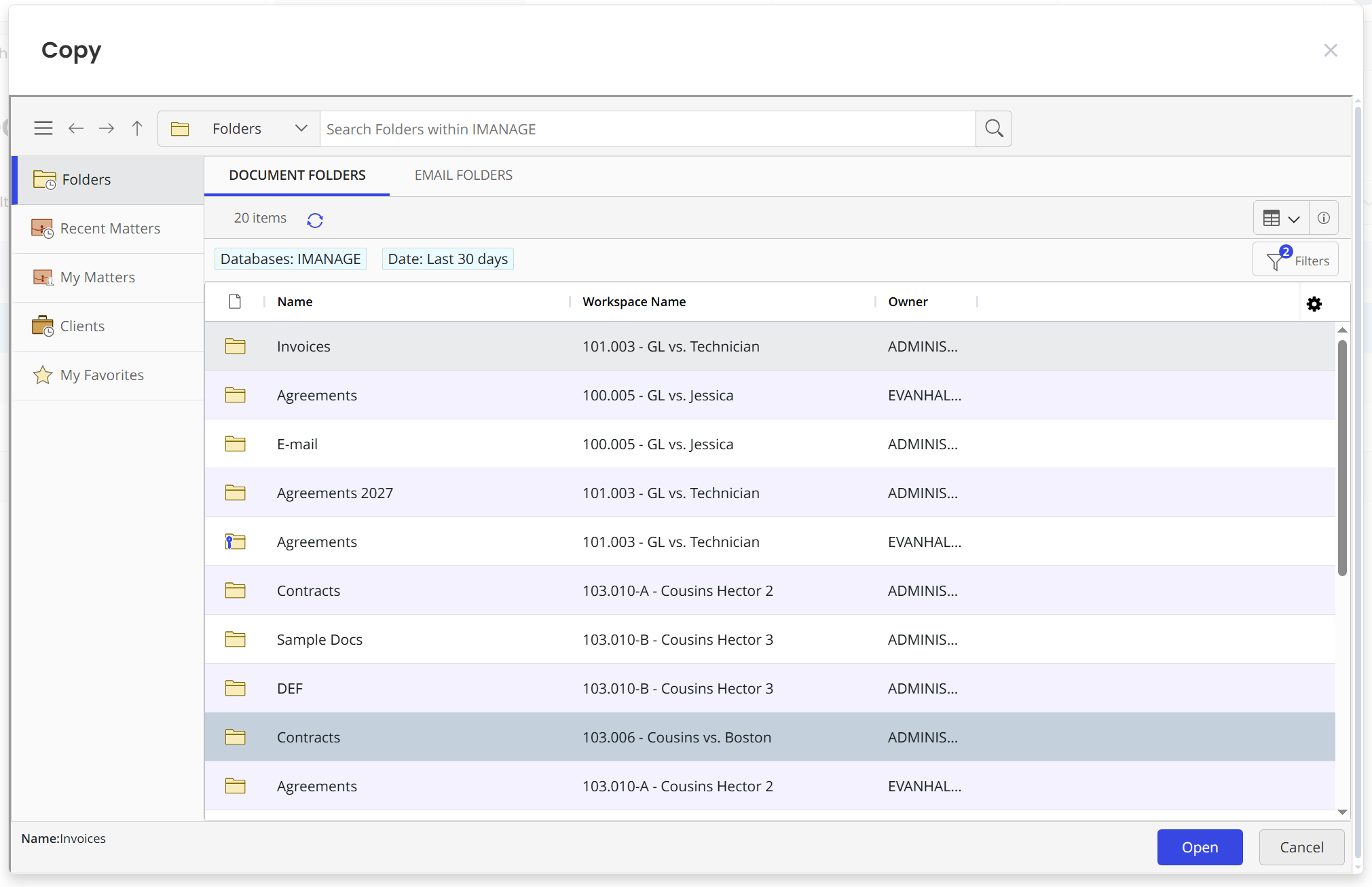
Copy – The selected document will be copied to the folder you choose. The folder can reside either in the same library, or in another.
Declare - The selected document will be declared as a record.
Delete – The selected document will be deleted. Depending on the global option chosen, the document will either be hard deleted or saved to the trash bin.
History – The timeline of the selected document will be presented.
Move - The selected document will be moved to the folder you choose. The folder can reside either in the same library, or in another.
Rename – Ability to rename the document. You can also rename the document from the Profile properties on the far right.
Refile – You can refile at the document level in order to inherit security or profile metadata from the parent Folder or Workspace.
View Profile – Displays the document profile on the far right side of the screen.
Security – Takes you to the Security tab so you and view, edit, or add Security.
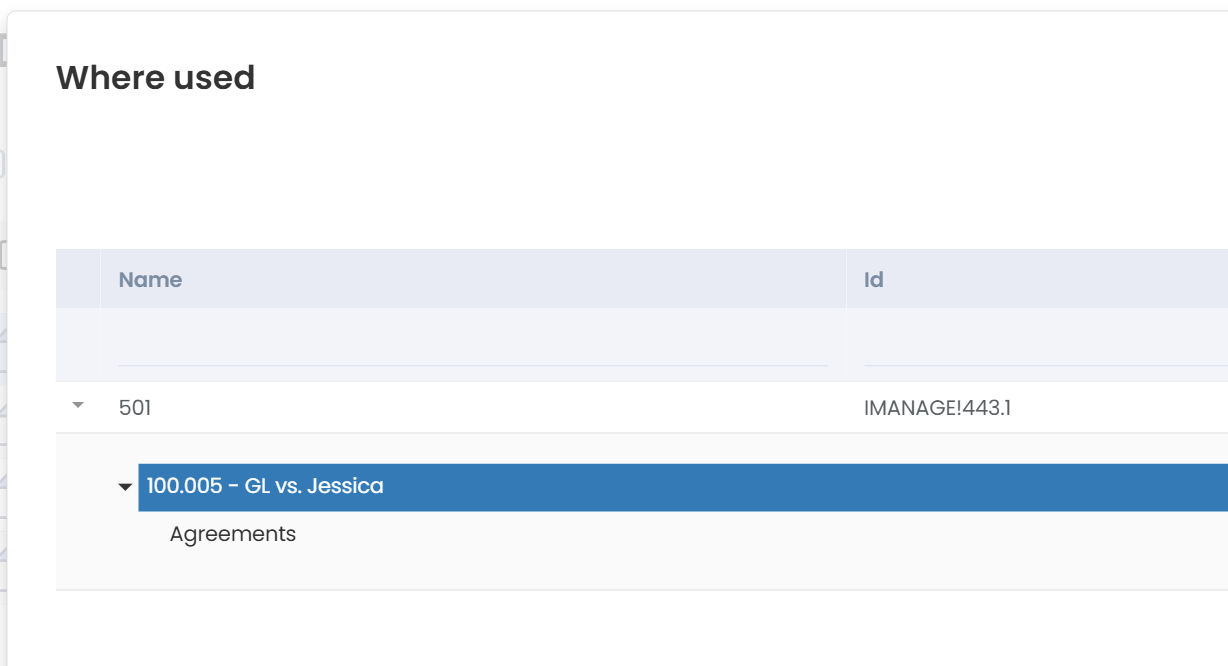
Where used – Lists all locations the document resides:
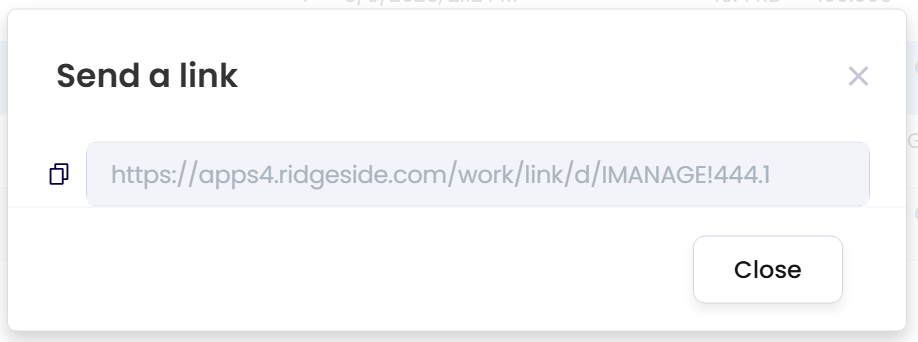
Send a Link – Copy a link to the document.
Application Icons
The icons listed in the first column of the list view, next to each document, shows the application they belong to. However, the more common named applications are used with names in the icons:
- Word
- Excel
- PowerPoint
The rest of the application types, such as TXT, MSG, GIF, TIF, JPG, will be listed as a generic icon.
Multi-Selection
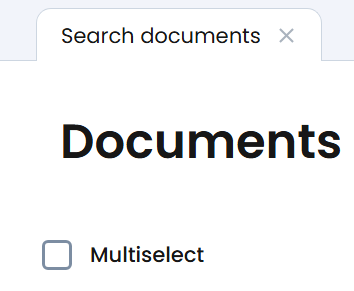
Choose the “Multiselect” checkbox to enable the checkboxes next to each Document.
Upon a Multiple Selection, the following menu is revealed:
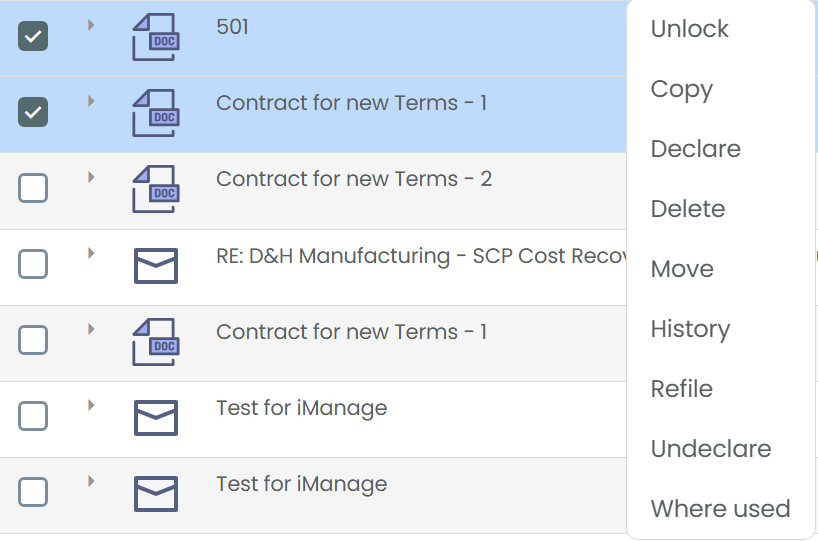
Unlock – An unlock will occur for the selected documents that is checked out. We are not able to remote-check in since we will not have access to the checked out document. Therefore, we can only unlock.
Copy – The selected documents will be copied to the folder you choose. The folder can reside either in the same library, or in another.
Declare - The selected documents will be declared as a record.
Delete – The selected documents will be deleted. Depending on the global option chosen, the documents will either be hard deleted or saved to the trash bin.
Move - The selected documents will be moved to the folder you choose. The folder can reside either in the same library, or in another.
History – The timeline of the selected documents will be presented.
Refile – You can refile at the document level in order to inherit security or profile metadata from the parent Folder or Workspace.
Undeclare – Should the documents be Declared as Record, they can be undeclared.
Where used – Lists all locations the documents reside.
Versions are now supported in the Document View by choosing the black arrow:
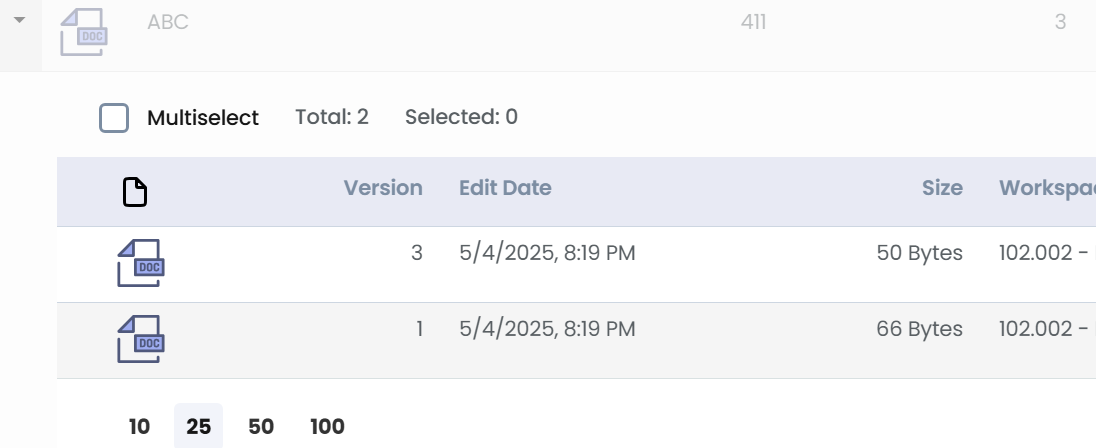
Left clicking once on a Version, will show the Profile and Security tabs on the far right.
Right-clicking on a version will support a limited Document context menu:
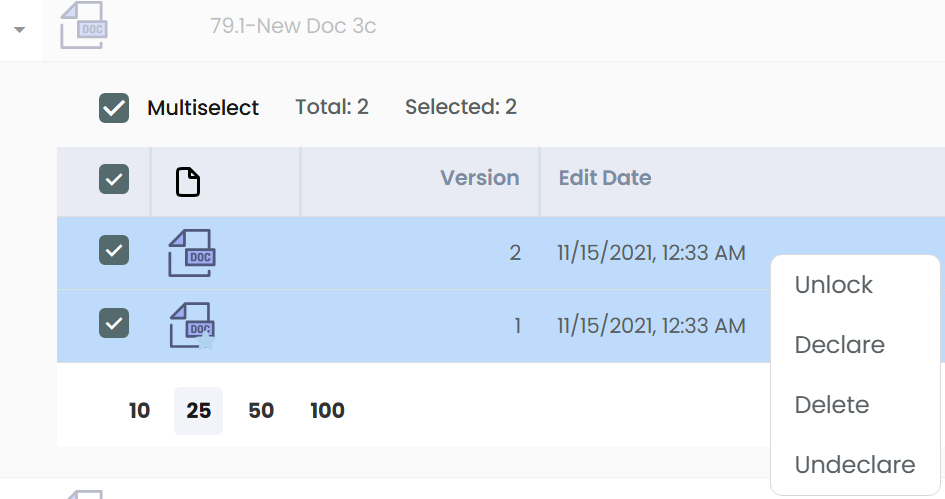
Selecting a context option at the top document, will encompass all versions.