Workspace Menus
Copy Workspace – Copies the Workspace from one Library to another Library.
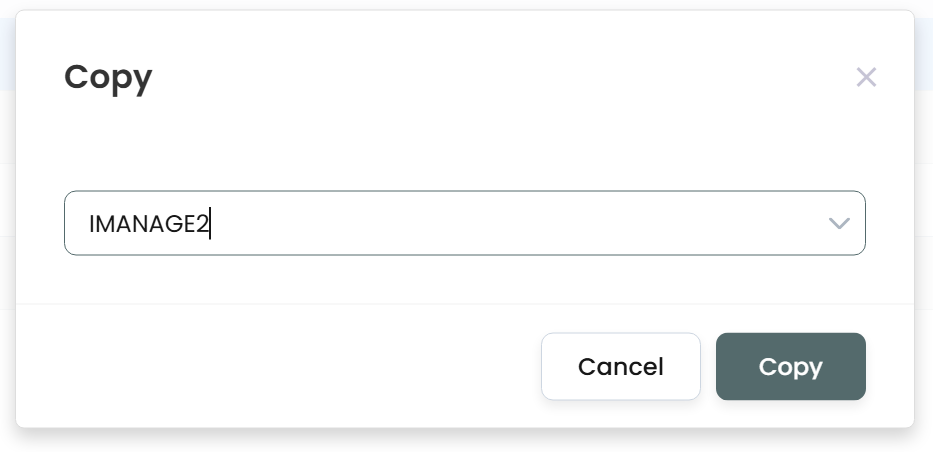
Move Workspace – Copies the Workspace from one Library to another Library.
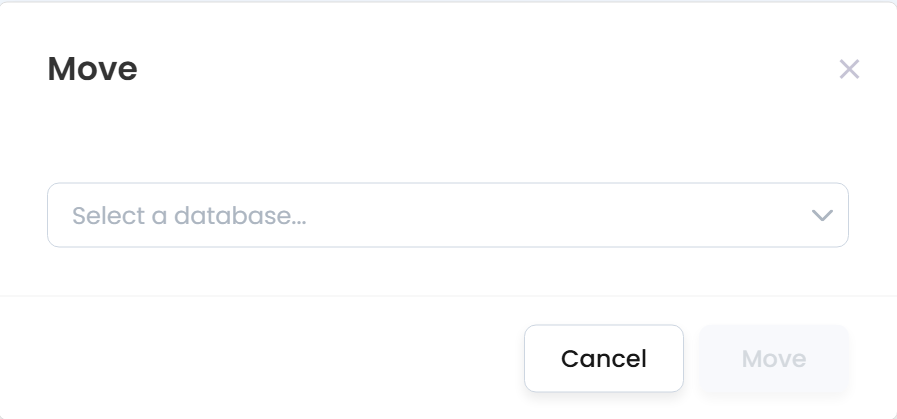
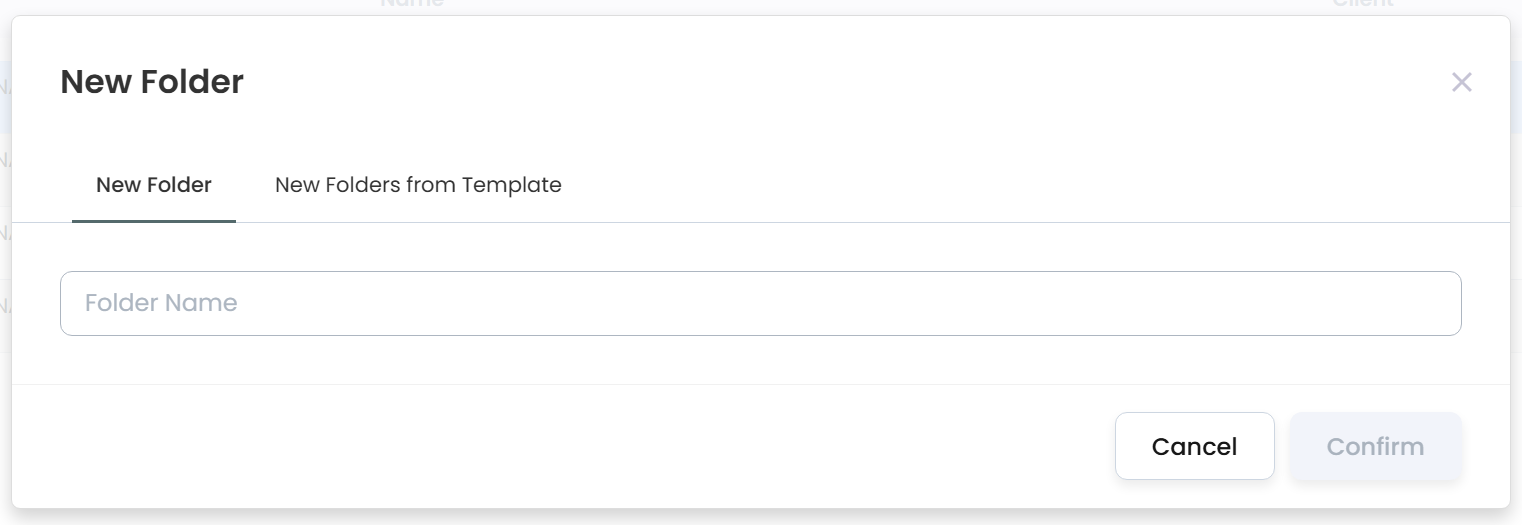
New Folder – Creates a new Folder on the root of the Workspace, either one folder at a time or from a Template.
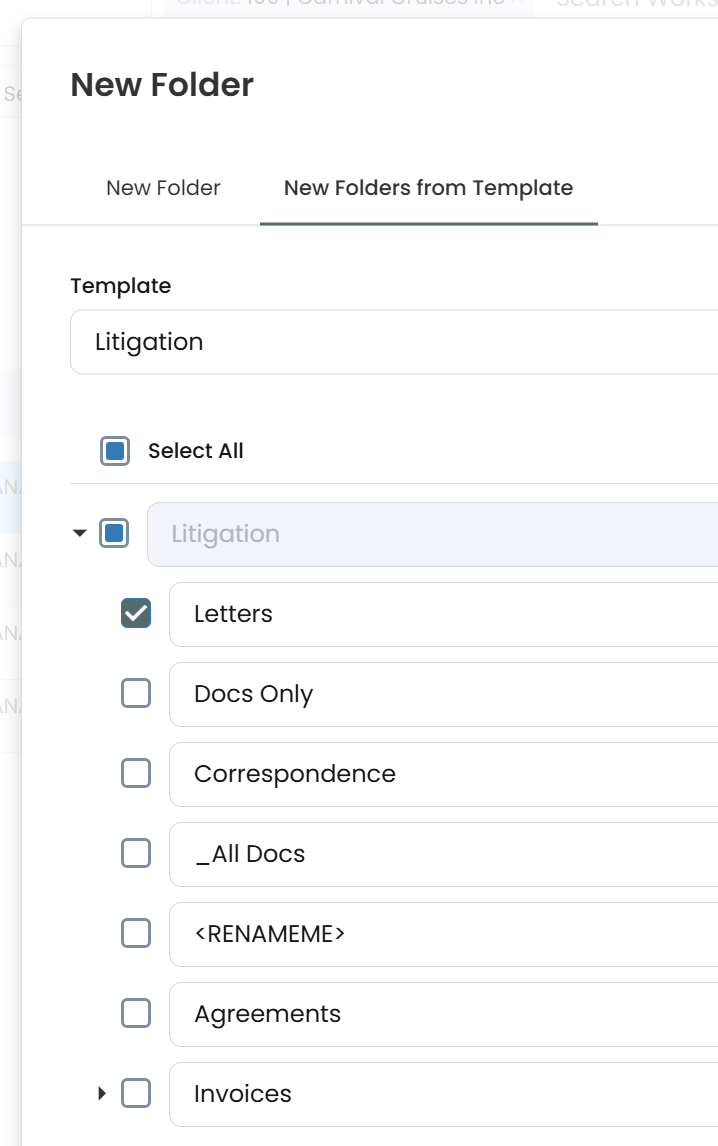
The Template list will show all folders of a given template. Each folder can be renamed before confirming.
Note: Based on the security rules of your Firm, you may only see one New Folder option.
Refile – Refiling will push security and/or profile information from the Workspaces to each sub folder.
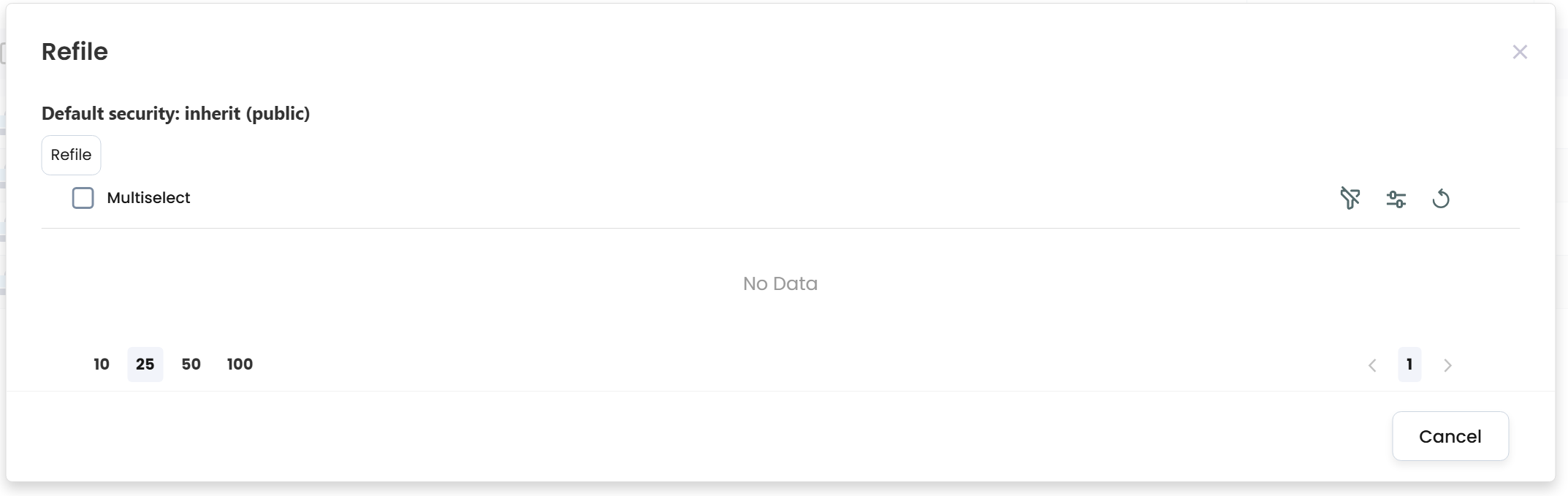
The Refile dialog box shows the currently selected Workspace’s ACL list. In addition, at the top left, the Default Security for the selected Workspace, will appear.
Filter by any column in the list view in order to locate ACLs, by entering in values to the filter row.

Choose the “Refile” button to start the process.
From a Workspace:
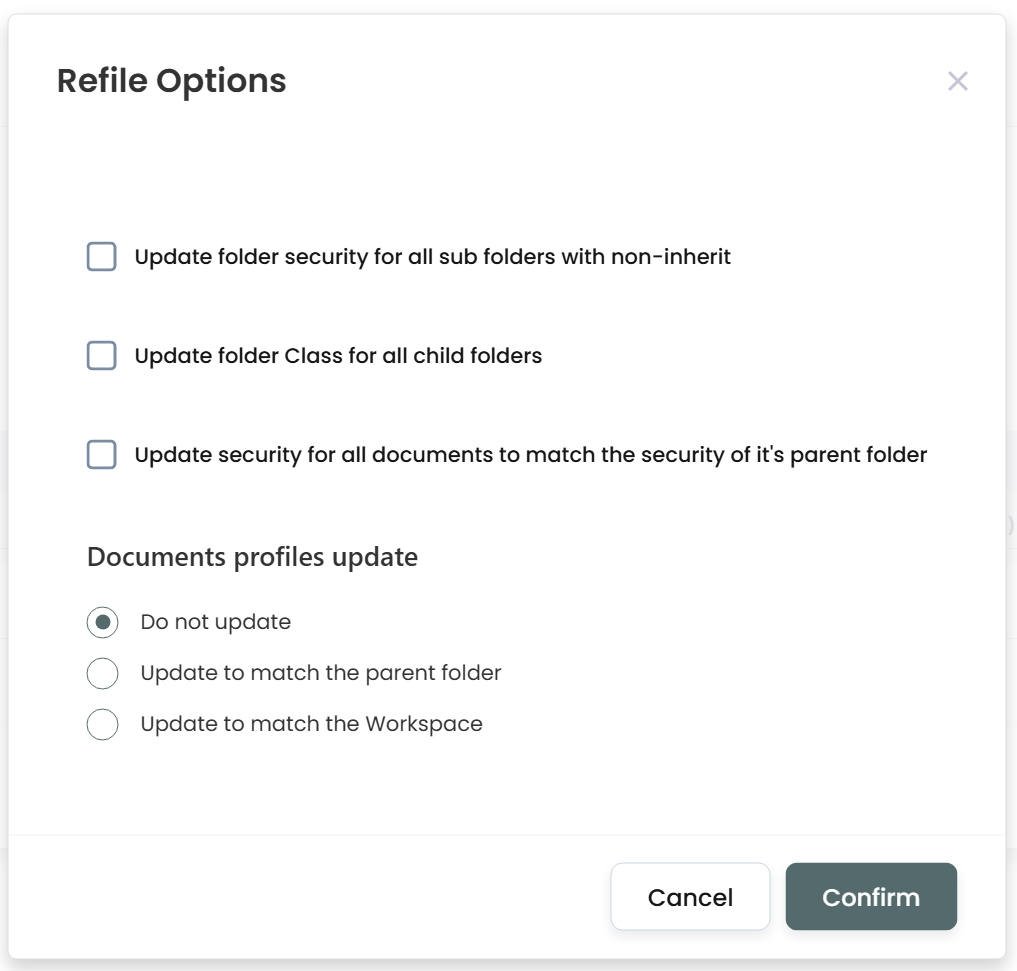
Update folder security for all sub folders with non-inherit – The Workspace ACL and Default security will be pushed to all folders that are not currently set to Inherit.
Update folder Class for all child folders – When the root level Folders of the selected Workspace has a Class defined, that Class will be pushed down to all subfolders.
Note: This option does not push the Class from the Workspace to the Folders.
Update security for all documents to match the security of it’s parent folder – Every document residing under a Folder of the selected Workspace, will use the same security as the Folder which it belongs. Any existing document ACL will be removed initially, and the Default Security will be changed to match the Folder above it.
Document Profile Updates – Gives you the ability to update the profile field updates to the document from the parent Folder or from the Workspace. The profile fields that will be copied down to the document will be defined administratively.
When the Refile completes, you will be presented with the Refile Results dialog showing:
- Total number of items processed
- Total number of items refiled
- Total time to perform the refile
Note: When a Refile occurs for documents, all Versions of the Document will be affected.
From a Folder:
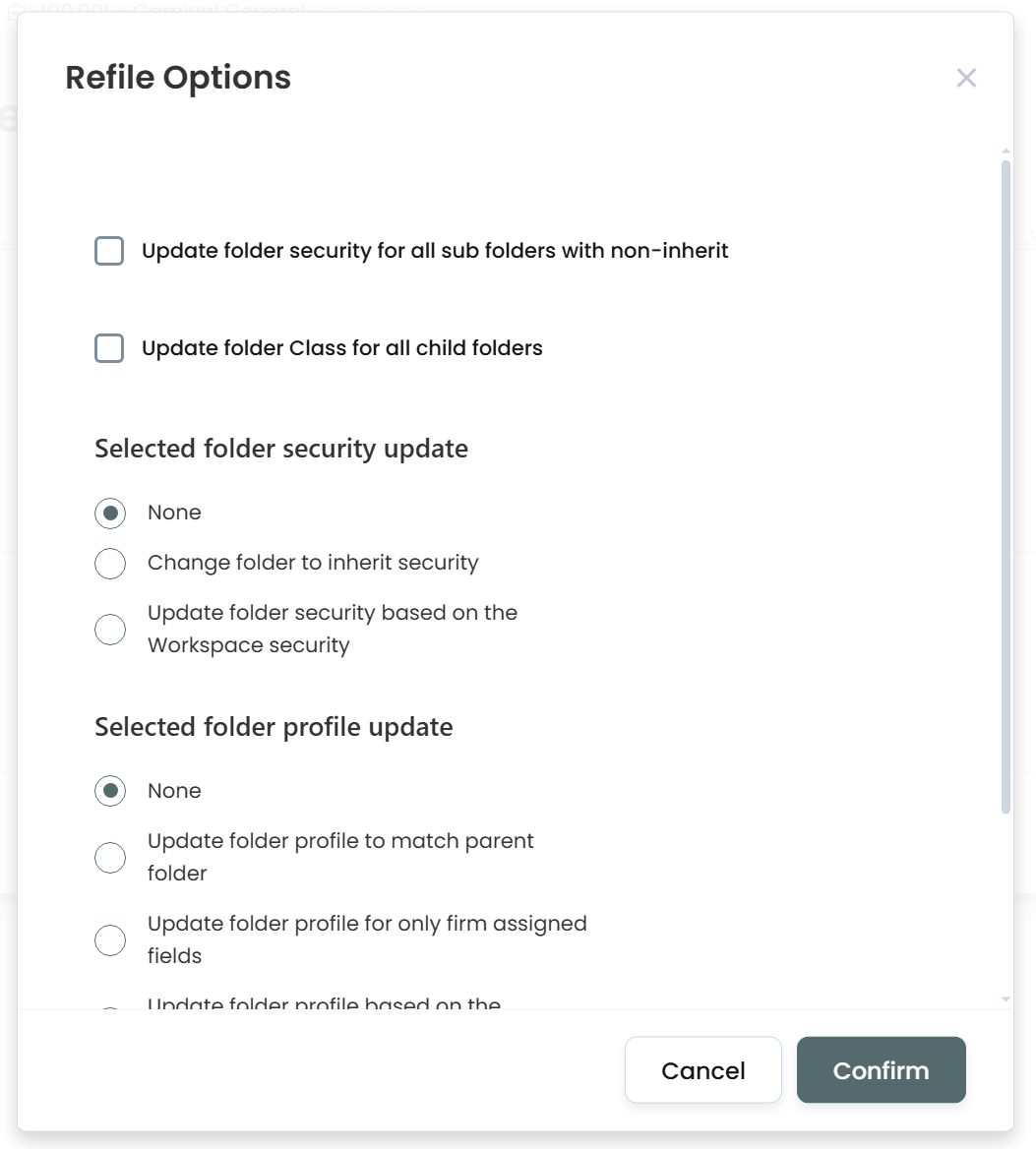
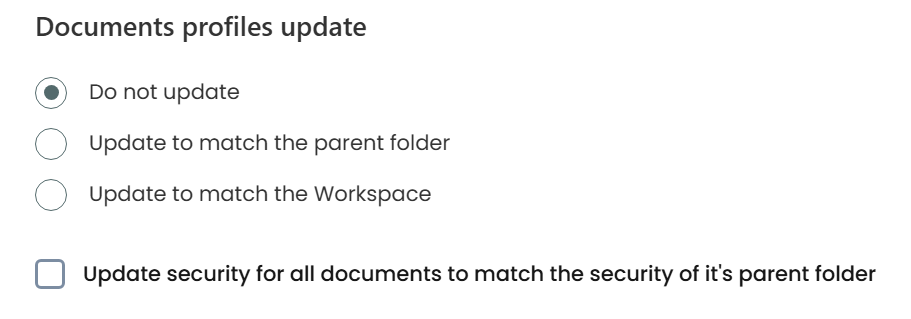
Update folder security for all sub folders with non-inherit – The ACLs and Default Security of the selected Folder will be pushed down to each Sub Folder in which they have different security than its parent Folder (aka, non-inherit).
For example, if the parent Folder defaults to Public and the Sub Folder defaults to Private, then it is not inheriting. In this case, we will push the same security down from it’s parent.
Update folder class for all child folders – All Sub Folders of the selected Folder will take on the Class of the selected Folder.
Folder Security Update:
None – Make no changes
Change folder to inherit security – Instead of changing the security to a Default, we will simply choose Inherit which will use the same security of its parent.
Update folder security based on the Workspace security – As an option, the ACL and Default security of the parent Workspace, will be pushed down to every folder.
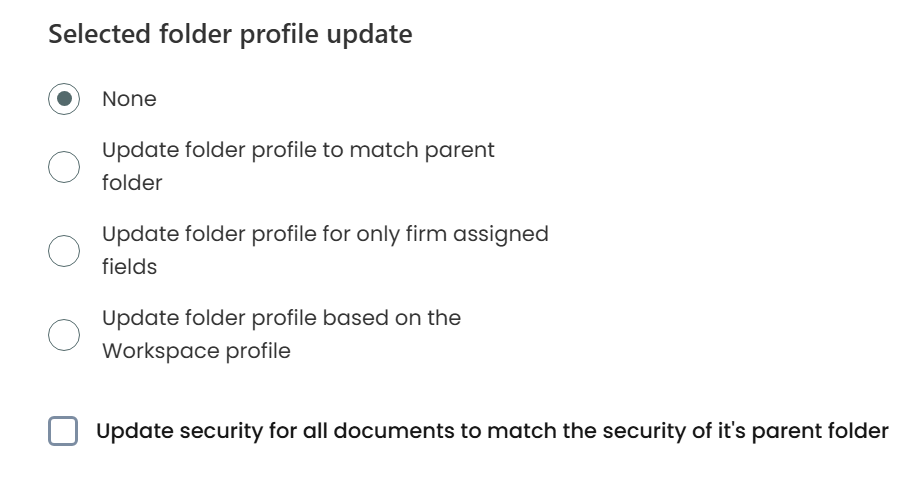
Folder Profile Update:
None – Make no changes
Update folder profile to match parent folder – The Folder profile containing all metadata, will be pushed from the selected Folder to each Sub Folder under it.
Update folder profile for only firm assigned fields – Within the “appsettings.json” file of the installation folder, there is a parameter, “FieldsToSync”. Whatever field is listed, will be pushed to each Sub Folder.
Update folder profile based on the Workspace Profile – The parent Workspace’s profile fields will be pushed down to the Folder’s profile. For example, CUSTOM1, CUSTOM2, CUSTOM3 can be pushed from workspace to each Sub Folder.
Update Security for all documents to match the security of it’s parent folder – Each document under the selected parent Folder, will use the same security as the folder above it.
Document Profile Updates – Gives you the ability to update the profile field updates to the document from the parent Folder or from the Workspace. The profile fields that will be copied down to the document will be defined administratively.
When ready, choose the “Confirm” button to begin.
When the Refile completes, you will be presented with the Refile Results dialog showing:
- Total number of items processed
- Total number of items refiled
- Total time to perform the refile
Note: When Refiling documents with versions, all versions will be affected.
Workspace Profile
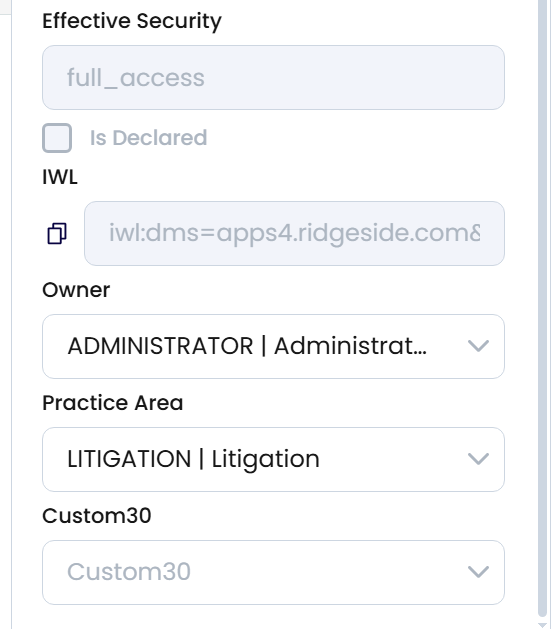
The Workspace Profile panel will show all possible fields of the Workspace Profile. Only some of the fields will be editable due to constraints in iManage.
For any editable field, making changes to the field will instantly save the value without the need to save with a button.
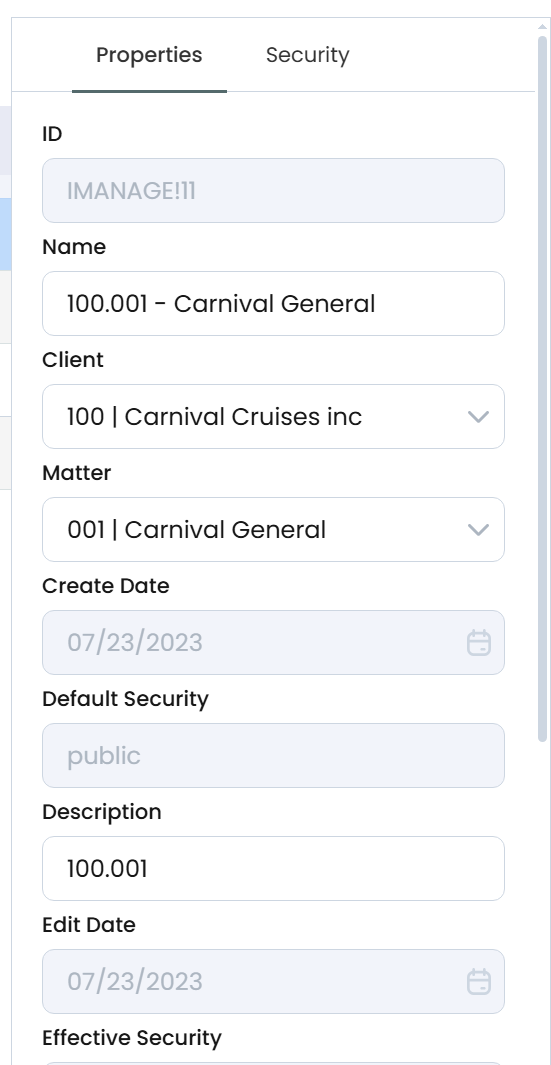
Only the CUSTOM fields chosen by your administrator will be visible.
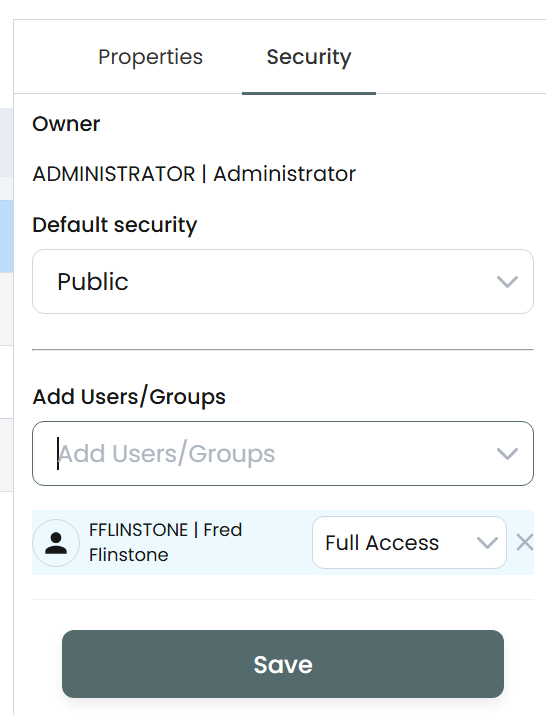
Workspace Security
Workspace Default and Workspace Security (aka, ACL), will be editable from this panel. Simply choose the default security of Public, Private or View, and then Save.
NOTE: When iManage SPM is used, Service Desk will not be able to report on the actual ACLs in use. Instead we will simply state that SPM is in use. We will not be able to update security from Service Desk. You will have to use SPM to make all changes.
Choose a User or Group along with Full Access, No Access, View Access, or Read Write Access for the ACL.
However, on multi-selection, the Security tab shows as follows:
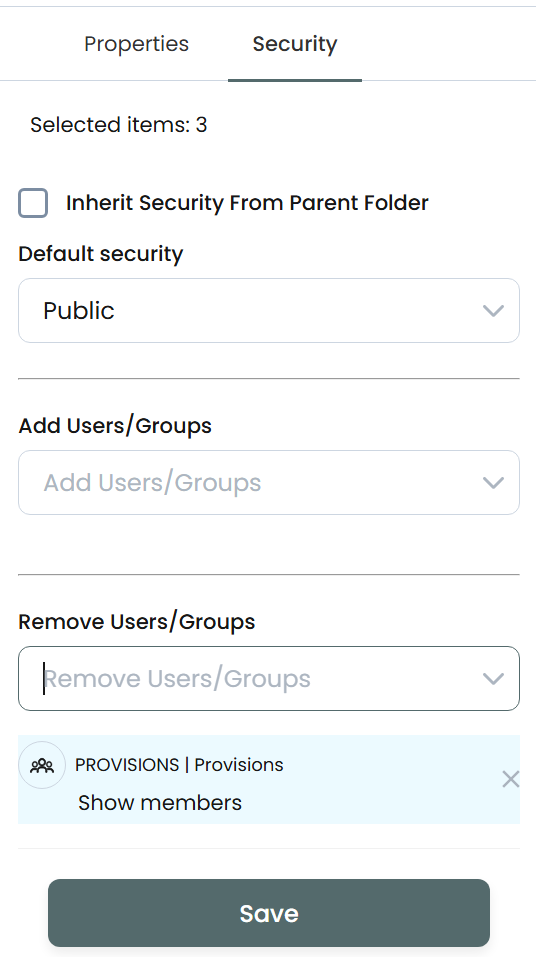
Choose a User or Group from the “Remove Users/Groups” list, and any reference to that User or Group will be removed from any of the selected Workspaces.
Folder Profile
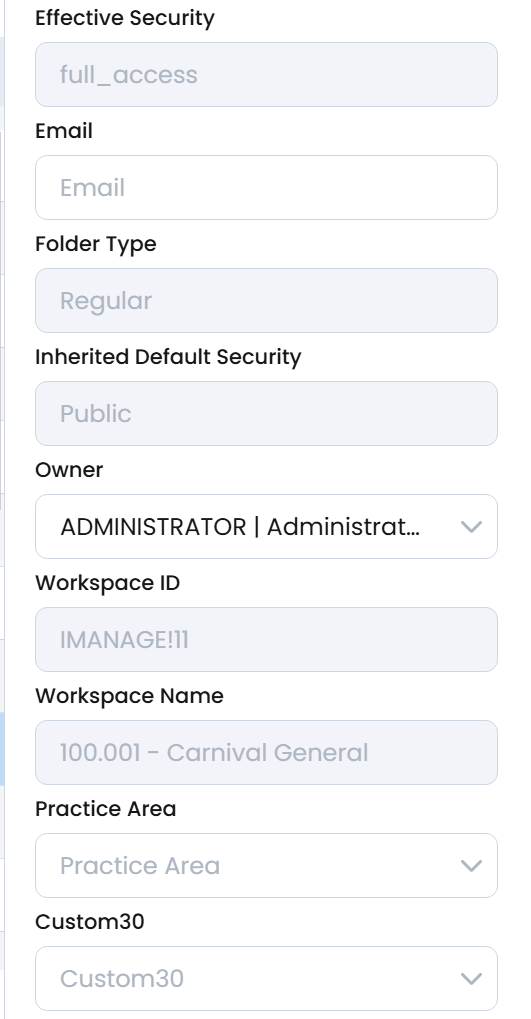
The Folder Profile panel will show all possible fields of the Folder Profile. Only some of the fields will be editable due to constraints in iManage.
For any editable field, making changes to the field will instantly save the value without the need to save with a button.
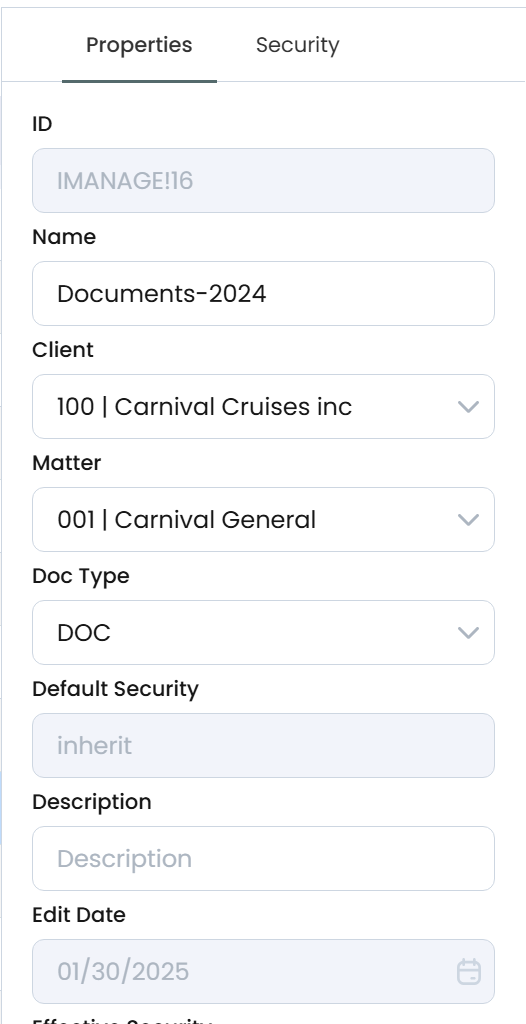
Only the CUSTOM fields chosen by your administrator will be visible.
Folder Security
Folder Default and Folder Security (aka, ACL), will be editable from this panel. Simply choose the default security of Public, Private or View, and then Save.
NOTE: When iManage SPM is used, Service Desk will not be able to report on the actual ACLs in use. Instead we will simply state that SPM is in use. We will not be able to update security from Service Desk. You will have to use SPM to make all changes.
Choose a User or Group along with Full Access, No Access, View Access, or Read Write Access for the ACL.
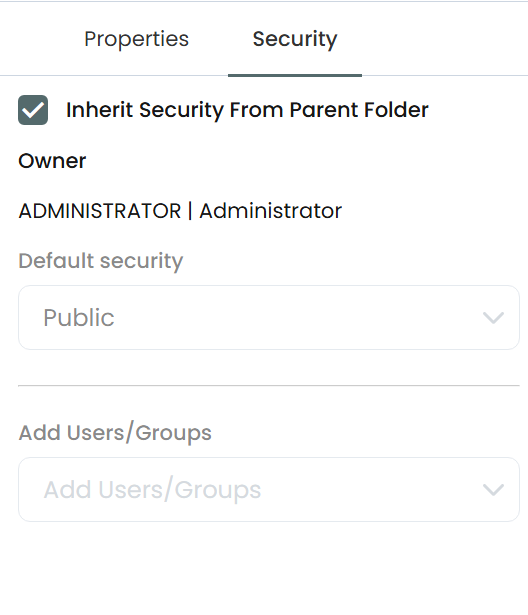
However, on multi-selection, the Security tab shows as follows:
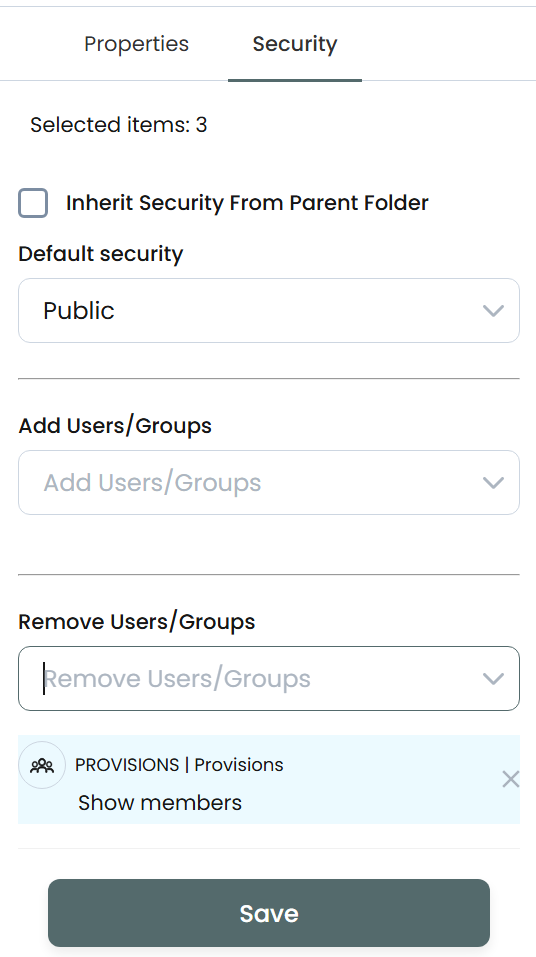
Choose a User or Group from the “Remove Users/Groups” list, and any reference to that User or Group will be removed from any of the selected Workspaces.